





Optimize Switch game performance: Docked vs. Handheld settings tips?

Unlocking Your Switch’s Full Potential
The Nintendo Switch offers an unparalleled level of versatility, allowing you to seamlessly transition between a home console experience and a portable gaming device. However, this flexibility also means that optimizing game performance can vary significantly depending on whether you’re playing in docked or handheld mode. Understanding these differences and adjusting your settings accordingly is key to getting the smoothest, most enjoyable gameplay experience.
Understanding the Core Differences
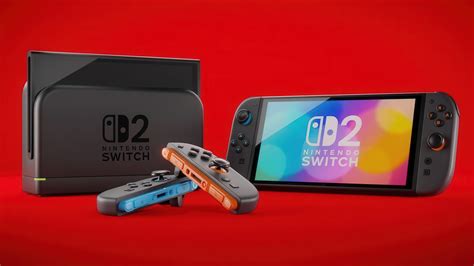
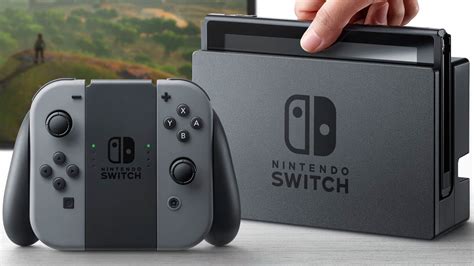
At its heart, the Switch operates differently when docked versus in handheld mode. When docked, the console draws constant power and typically boosts its CPU and GPU clock speeds, allowing for higher resolutions (up to 1080p on a TV) and often more stable frame rates. The system also has better heat dissipation when docked, as it’s not enclosed in your hands.
In handheld mode, the console prioritizes battery life and portability. The internal clock speeds are typically reduced, and the native resolution is capped at 720p on its built-in screen. This adjustment is crucial for maintaining power efficiency and managing heat in a compact form factor. Games often dynamically scale resolution and detail to maintain performance in handheld mode.
General Optimization Tips for Both Modes
Before diving into mode-specific advice, here are some universal tips to improve your Switch’s performance:
- Keep System Software Updated: Nintendo regularly releases system updates that can include performance enhancements and bug fixes. Always ensure your Switch is running the latest firmware.
- Update Game Software: Just like system updates, game patches often address performance issues and introduce optimizations.
- Restart Your Switch: A simple restart can clear cached data and resolve minor glitches that might be impacting performance.
- Close Unused Software: If you have multiple applications suspended in the background, fully close them to free up system resources.
Optimizing for Docked Mode
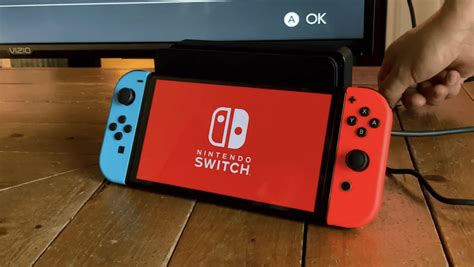
When your Switch is nestled in its dock, you’re aiming for the best possible visual fidelity and frame rate on your big screen:
- TV Settings: Enable ‘Game Mode’ on your television if available. This setting typically reduces input lag and can improve visual responsiveness. Check for other settings like motion smoothing (often better turned off for gaming) or dynamic contrast.
- Switch System Settings: Navigate to System Settings > TV Output.
- TV Resolution: Set this to ‘Automatic’ or explicitly to ‘1080p’ if your TV supports it. Some games might scale down, but the console will output at the selected resolution.
- RGB Range: Usually ‘Automatic’ is fine, but if you notice washed-out blacks or whites, try ‘Full Range’.
- Screen Size: Adjust this to perfectly fit your TV screen.
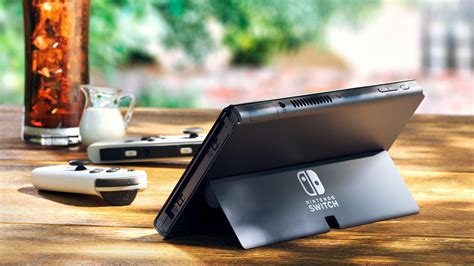
- Ensure Ventilation: Make sure your dock and Switch have adequate airflow. Overheating can lead to thermal throttling, reducing performance.
- Consider Wired Internet: For online games, a USB LAN adapter can provide a more stable and faster internet connection than Wi-Fi, which can indirectly improve your perceived performance by reducing latency.
Optimizing for Handheld Mode
In handheld mode, the focus shifts to battery life, screen clarity, and a smooth portable experience:
- Screen Brightness: Lowering the screen brightness (found in Quick Settings by holding the Home button) is the single most effective way to extend battery life. This also indirectly helps maintain performance by reducing power draw.
- Wi-Fi and Bluetooth: If you’re playing an offline single-player game, temporarily turn off Wi-Fi and Bluetooth (unless using wireless controllers) to save power and reduce potential interference.
- Game-Specific Performance Modes: Many modern Switch games offer in-game graphics options. Look for settings that allow you to prioritize ‘Performance’ over ‘Quality’ or ‘Graphics’. This might mean slightly lower resolution or graphical effects, but a much smoother frame rate.
- Avoid Blocking Vents: When playing handheld, be mindful not to cover the air intake vents on the back or the exhaust vent on the top of the console.
Leveraging In-Game Settings
Beyond system-level adjustments, many games offer their own internal graphics or performance settings. These can be crucial for fine-tuning your experience:
- Performance vs. Quality Modes: Titles like The Witcher 3, DOOM Eternal, and Xenoblade Chronicles 3 offer options to switch between a higher resolution/detail mode and a smoother frame rate mode. Experiment with these to find your preference.
- Resolution Scaling: Some games allow you to manually adjust the internal resolution scale. Lowering this can significantly boost frame rates, especially in handheld mode.
- Visual Effects: Options to reduce bloom, motion blur, or shadow quality can also lighten the load on the Switch’s GPU.
Conclusion
Optimizing your Nintendo Switch’s performance is an ongoing process of understanding its capabilities in different modes and making informed adjustments. By applying these tips for both docked and handheld play, you can ensure your console is always delivering the best possible gaming experience, whether you’re battling monsters on the big screen or adventuring on the go.


