
How to set up parental controls for safe, age-appropriate gaming?

In today’s digital age, video games are an integral part of many children’s lives. While gaming offers numerous benefits, from problem-solving skills to social interaction, it also presents challenges like exposure to inappropriate content, excessive screen time, and online interactions with strangers. For parents, ensuring a safe and age-appropriate gaming experience is paramount. This guide will walk you through setting up robust parental controls across various platforms, empowering you to manage your child’s digital playtime effectively.
Why Parental Controls Are Essential for Gaming
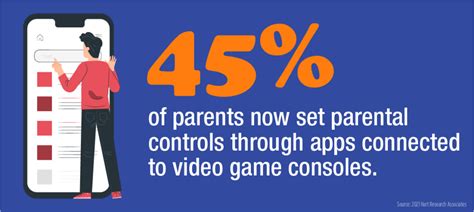
Beyond the simple desire to limit screen time, parental controls are crucial for several reasons. They help protect children from violent or mature content, prevent unauthorized purchases, manage online interactions, and maintain a healthy balance between gaming and other activities. Understanding these risks is the first step towards implementing effective safeguards.
Understanding ESRB and PEGI Ratings
Before diving into technical settings, familiarize yourself with game rating systems like the Entertainment Software Rating Board (ESRB) in North America and Pan European Game Information (PEGI) in Europe. These ratings provide age recommendations and content descriptors, giving you a quick overview of a game’s suitability for your child.
Setting Up Controls on Gaming Consoles
PlayStation Consoles (PS4, PS5)
PlayStation offers comprehensive family management tools. You can create accounts for each child, assign age restrictions based on game ratings, set spending limits, restrict communication with other players, and manage web browsing. Access these settings via “Settings” > “Family and Parental Controls” on your console or through the PlayStation App.
Key features include:
- Game age restrictions
- Monthly spending limits
- Communication restrictions (messaging, voice chat)
- Web browser access control
- Play time limits

Xbox Consoles (Xbox One, Xbox Series X|S)
Microsoft’s Xbox Family Settings app allows parents to easily manage their children’s gaming on Xbox consoles and Windows PCs. You can set screen time limits, content filters, and decide who your child can play and communicate with online. The app provides real-time activity reports and allows you to approve or deny friend requests.
Key features include:
- Screen time scheduling
- Content filters for games and apps
- Friend request management
- Privacy settings for online interactions
- Cross-platform play control
Nintendo Switch
The Nintendo Switch Parental Controls app, available for smartphones, is your central hub for managing your child’s Switch usage. You can set daily play time limits, restrict software by age rating, and monitor gameplay activity. The console also has basic controls for restricting eShop purchases and communication.
Key features include:
- Daily play time limits and sleep mode enforcement
- Software restriction by age rating
- Monitoring playtime activity
- E-Shop purchase restrictions

Parental Controls on PC Gaming
PC gaming often involves various platforms like Steam, Epic Games, or Microsoft Store. Each platform has its own parental control settings, but you can also use operating system-level controls.
Windows Family Features
Microsoft Family Safety allows you to manage screen time across Windows devices, Xbox, and Android phones. You can set app and game limits, content filters for web browsing, and receive activity reports. This is a powerful, centralized tool for Windows users.
Steam Family View
Steam’s Family View mode allows parents to restrict access to certain content categories (e.g., games, store, community) and features within the Steam client. It’s password-protected and provides a good level of control for this popular PC gaming platform.

Mobile Gaming Controls
For gaming on smartphones and tablets, parental controls are typically managed at the operating system level (iOS Screen Time, Android Family Link) and within app store settings.
iOS Screen Time
Apple’s Screen Time feature on iPhones and iPads allows you to set downtime, app limits, content and privacy restrictions (including explicit content, web content, and app purchases), and communication limits. You can manage these settings for your child’s device remotely.
Google Family Link
Google Family Link for Android devices allows parents to set digital ground rules, approve app downloads, manage app permissions, set screen time limits, and even locate their child’s device. It’s comprehensive for Android users.
Beyond Technical Controls: Communication and Monitoring
While technical controls are vital, they are most effective when paired with open communication and active monitoring. Talk to your children about online safety, age-appropriate content, and the importance of balancing screen time with other activities.
- Open Dialogue: Discuss rules and boundaries with your children.
- Lead by Example: Model responsible digital behavior yourself.
- Stay Involved: Play games with your children or show interest in what they’re playing.
- Regular Reviews: Periodically review and adjust settings as your children grow and their needs change.

Conclusion
Setting up parental controls for gaming is an ongoing process that evolves with your child. By utilizing the tools available on various platforms and fostering an environment of open communication, you can ensure that your children enjoy the positive aspects of gaming while minimizing the risks. Your proactive approach will help them develop healthy digital habits that last a lifetime.