





How to add more storage for digital games on Switch & consoles?
Modern video games are massive, and with digital downloads becoming the norm, console storage fills up faster than ever. Whether you’re a Nintendo Switch enthusiast, a PlayStation loyalist, or an Xbox aficionado, running out of space is a common frustration. Fortunately, all major consoles offer robust solutions to expand your storage, ensuring you never have to delete a beloved title to make room for a new one.
Nintendo Switch: The Power of MicroSD Cards
The Nintendo Switch, with its modest internal storage (32GB or 64GB for the OLED model), is perhaps the console most in need of an upgrade. Thankfully, expanding its storage is incredibly simple and affordable.
MicroSD Cards
The Switch exclusively uses microSD cards for expandable storage. These tiny cards come in various capacities, from 64GB all the way up to 2TB (though 1TB is currently the practical maximum for most users). When choosing a card, look for:
- Capacity: Go for as much as you can afford. 256GB, 512GB, or 1TB are popular choices.
- Speed: While the Switch doesn’t fully utilize the fastest microSD speeds, a card rated U1 (UHS Speed Class 1) or U3 (UHS Speed Class 3) with a read speed of at least 60-95 MB/s will provide optimal performance. Cards with “A1” or “A2” ratings are also good, as they indicate better random read/write speeds, which can benefit game loading.
Installation is as simple as opening the kickstand on the back of the Switch and inserting the card into the slot. The console will automatically recognize and format it for use.

PlayStation Consoles: Internal & External Options
PlayStation consoles offer different approaches to storage expansion, depending on the generation.
PlayStation 5 (PS5)
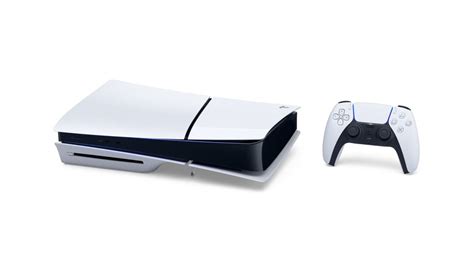
The PS5 comes with a super-fast custom 825GB SSD, but a significant portion is reserved for the system software. For PS5-specific games, you have two primary options:
- Internal M.2 NVMe SSD: This is the recommended solution for running PS5 games directly. Sony allows users to install a compatible PCIe Gen4 NVMe M.2 SSD. These drives need to meet specific speed and size requirements (e.g., at least 5,500 MB/s read speed, certain dimensions). Installation involves opening the PS5’s side panels and carefully inserting the drive. Many M.2 SSDs now come with pre-installed heatsinks, which are crucial for performance and longevity.
- External USB Storage: You can connect an external USB HDD or SSD to your PS5. However, these drives can only be used to store and play PlayStation 4 (PS4) games. PS5 games must be stored on the internal SSD or an installed M.2 NVMe SSD. While you can transfer PS5 games to an external drive for storage, you’ll need to move them back to an internal SSD to play them.
PlayStation 4 (PS4)
The PS4 offers a simpler solution:
- External USB Storage: Simply plug in a compatible external USB 3.0 hard drive or solid-state drive (SSD). The PS4 will prompt you to format it for game storage. This is a very straightforward and cost-effective way to expand your PS4 library.
- Internal Hard Drive Replacement: While possible, replacing the internal 2.5-inch SATA hard drive requires more technical comfort and effort, involving data backup and reinstallation. Most users find external storage more convenient.
Xbox Consoles: Proprietary & Universal Solutions
Microsoft’s Xbox consoles also provide varied storage expansion methods.
Xbox Series X|S
The current-gen Xbox Series X and Series S use a fast custom SSD for optimized games. Expanding this storage has specific considerations:
- Seagate Storage Expansion Card: This proprietary NVMe SSD card is the only solution that matches the internal drive’s speed and is required to play “Optimized for Xbox Series X|S” games directly from it. It plugs into a dedicated port on the back of the console and offers seamless integration. Available in 512GB, 1TB, and 2TB capacities, these cards tend to be more expensive than standard external drives.
- External USB Storage: You can connect external USB 3.0 HDDs or SSDs. These are excellent for storing and playing backward-compatible games from Xbox One, Xbox 360, and the original Xbox. They can also store Xbox Series X|S optimized games, but you’ll need to transfer those back to the internal SSD or the Seagate Expansion Card to play them.

Xbox One
For Xbox One users, expanding storage is straightforward:
- External USB Storage: Plug in any USB 3.0 external hard drive or SSD (256GB or larger). The Xbox One will guide you through formatting it for games. This provides a simple and effective way to add gigabytes or terabytes of space.
General Tips for Expanding Console Storage
Regardless of your console, keep these points in mind when upgrading:
- Speed Matters: For current-gen consoles (PS5, Xbox Series X|S), the speed of the storage device is crucial for optimal game performance, especially for loading times and running optimized titles. Don’t skimp on speed if playing new games is your priority.
- Capacity vs. Cost: Balance your storage needs with your budget. While larger capacities are tempting, they come at a higher price. Consider how many games you actively play and how often you’re willing to manage your library.
- Installation Difficulty: MicroSD cards and external USB drives are plug-and-play. Internal M.2 SSDs for PS5 and proprietary Xbox expansion cards require a bit more attention but are generally user-friendly with instructions.
- Manage Your Library: Even with expanded storage, regularly review your installed games. Delete titles you’ve finished or no longer play, as this keeps your library tidy and frees up space, even if you have plenty.

Conclusion
Running out of space on your gaming console is no longer an insurmountable problem. With a variety of solutions ranging from simple plug-and-play external drives to high-speed internal SSDs, you can easily expand your digital game library and ensure your adventures never hit a storage wall. Invest in the right storage solution for your console, and keep your favorite games—and many more—ready to play at a moment’s notice.


