





Switch storage full? How to free up space or pick a new microSD.
Is Your Nintendo Switch Storage Bursting at the Seams?
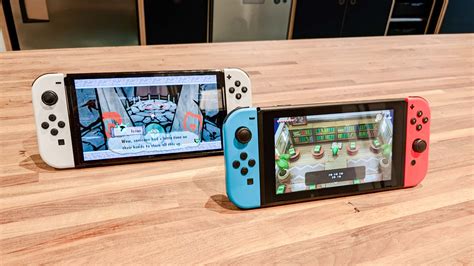
It’s a common gamer’s dilemma: you’re ready to download that hot new title or crucial update, only to be met with the dreaded “Not enough free space” message on your Nintendo Switch. With the console’s modest internal storage (32GB for the original and Lite, 64GB for the OLED model), it doesn’t take long for digital downloads, game updates, and captured screenshots or videos to consume every available megabyte. But don’t despair! There are straightforward ways to reclaim precious space or, if necessary, expand your console’s storage capacity.
Clearing Out the Clutter: Freeing Up Internal Space
Before you rush to buy a new accessory, let’s explore how to make the most of the storage you already have. The Switch offers a few convenient options for managing your data.
Archive vs. Delete: Knowing the Difference
When dealing with games, you have two main choices:
- Archiving Software: This is the recommended first step. Archiving removes the game data from your console but keeps its icon on your Home menu and saves your game progress. You can redownload the game at any time from the eShop or your user profile. This is ideal for games you might want to play again later but don’t need installed right now.
- Deleting Software: This removes the game data, its icon, and all save data associated with it from your console. Only choose this if you are absolutely sure you never want to play the game again or if you have a Nintendo Switch Online subscription that backs up your save data to the cloud. Most modern games support cloud saves, but always double-check.
To manage your software, go to System Settings > Data Management > Manage Software. Here you can see which games are taking up the most space and choose to archive or delete them.
Managing Screenshots and Video Captures
Those epic in-game moments add up! Photos and videos can quickly fill your storage. Navigate to the Album on your Home menu to review your captures. You can select and delete individual items or groups of items. For videos, which are particularly large, consider backing up your favorites to a computer or uploading them to social media before deleting them from your console.
Clearing Downloaded Update Data
Sometimes, game updates are downloaded but not fully installed, or temporary files accumulate. While less common, you can sometimes free up a small amount of space by clearing certain system caches. Go to System Settings > Data Management > Delete All Save Data (be very careful here, as this deletes ALL save data for ALL users unless you’re specifically managing individual game data). A safer option is often to delete and redownload a problematic game, which can sometimes resolve corrupted data taking up extra space.

Expanding Your Horizons: Picking a New microSD Card
If archiving and deleting aren’t enough, or if you simply prefer to have all your games ready to play, a microSD card is your best friend. The Nintendo Switch supports microSD, microSDHC, and microSDXC cards.
Understanding microSD Card Types and Speeds
- microSDHC (High Capacity): Cards ranging from 4GB to 32GB. These are generally slower and less suitable for a large digital library.
- microSDXC (Extended Capacity): Cards ranging from 64GB to 2TB. These are what you should be looking for. They offer much more space and faster speeds.
Speed Classes: Look for cards with a high “UHS-I” speed class. Specifically, a “U3” or “V30” rating (indicated by a ‘3’ inside a U shape or ‘V30’ symbol) guarantees a minimum write speed of 30MB/s, which is ideal for smooth gameplay and fast load times on the Switch. Avoid slower cards, as they can lead to noticeable performance issues.
What Capacity Do You Need?
This depends on your gaming habits:
- 64GB-128GB: Good for light digital downloaders or those who primarily buy physical games.
- 200GB-256GB: A solid sweet spot for most gamers, offering plenty of room for a significant digital library.
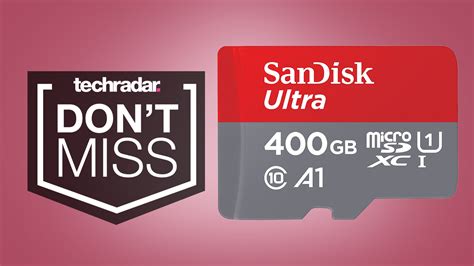
- 400GB-512GB: Excellent for avid digital collectors who want almost everything installed.
- 1TB or more: For the ultimate digital hoarders, though these can be quite expensive.
Remember that some games can be over 20GB-30GB, so factor that into your decision.
Installing and Managing Data with a microSD Card
Installing a microSD card is simple: just open the kickstand on the back of your Switch and slide the card into the slot. The system will automatically detect and format it if necessary. Any new downloads will automatically go to the microSD card if there’s sufficient space. You can also transfer existing game data from the internal storage to the microSD card via System Settings > Data Management > Move Data Between System / microSD Card.
Long-Term Storage Management Tips
- Regular Audits: Periodically check your Data Management settings to see what’s taking up space.
- Prioritize: Keep your most-played games on the faster internal storage (if possible) or a high-speed microSD card.
- Cloud Saves: Utilize your Nintendo Switch Online subscription for cloud save backups, giving you peace of mind when archiving or deleting games.
Conclusion
Running out of storage on your Nintendo Switch is an easily solvable problem. Whether you choose to meticulously manage your existing space by archiving games and clearing old captures, or you opt for the convenience of expanded storage with a high-capacity microSD card, you can ensure your gaming experience remains uninterrupted. Happy gaming!


