
How to optimize mobile game settings for better battery life and less data?
Mobile gaming has become a cornerstone of modern entertainment, offering immersive experiences on the go. However, these demanding applications often come at a cost: rapid battery drain and significant data consumption. Optimizing your game settings isn’t just about extending playtime; it’s about enhancing your overall mobile experience, saving money on data plans, and ensuring your device lasts longer between charges.
Understanding the Performance vs. Efficiency Trade-off
Every mobile game is designed with a spectrum of settings to accommodate different devices. High-fidelity graphics, detailed textures, and high frame rates consume more processing power, leading to increased battery usage and, if you’re streaming or downloading assets, more data. The key is to find a sweet spot that offers an enjoyable experience without unnecessarily taxing your device.

In-Game Settings: Your First Line of Defense
Most modern mobile games offer a dedicated ‘Settings’ or ‘Options’ menu where you can tweak various parameters. Prioritize these adjustments first:
Graphics Quality (Resolution, Textures, Shadows)
- Lower Resolution: Reducing the game’s rendering resolution can dramatically cut down on GPU workload and battery consumption.
- Texture Quality: Opt for ‘Medium’ or ‘Low’ texture settings. High-resolution textures take up more memory and processing power.
- Shadows and Effects: Shadows, anti-aliasing, reflections, and complex particle effects are often major battery hogs. Disabling or lowering these can provide significant gains.
Frame Rate (FPS)
- While 60 FPS (frames per second) offers a buttery-smooth experience, many games are perfectly playable at 30 FPS. Limiting the frame rate can greatly reduce CPU/GPU usage and heat generation.
Sound and Vibration
- Mute or Lower Volume: Audio processing uses some battery. If you’re playing in public, headphones are better, or simply mute the game.
- Disable Vibration: Haptic feedback, while immersive, requires the device’s vibration motor, which consumes noticeable power.
Download Preferences
- Many games allow you to download additional data packs. Always choose to download these over Wi-Fi only to prevent unwanted data charges.
Device-Level Optimizations for Sustained Play
Beyond the game itself, your device’s operating system offers crucial settings to manage battery and data.
Battery Saver Mode
Both Android and iOS have built-in battery saver modes that can restrict background app activity, reduce screen brightness, and limit CPU performance. Activate this mode before or during extended gaming sessions.
Background App Refresh/App Standby
Disable background refresh for non-essential apps. This prevents them from consuming data and battery when not in active use, freeing up resources for your game.
Data Saver Mode
Activate your device’s data saver mode (often found in network settings). This can prevent apps from using mobile data in the background and may compress data for some apps.
Wi-Fi Preference and Usage
Always connect to a stable Wi-Fi network when available. Not only is it faster, but it also uses less battery than constantly searching for and maintaining a cellular connection. Ensure large game updates and asset downloads only happen on Wi-Fi.
Screen Brightness and Refresh Rate
- Lower Brightness: The screen is often the biggest power consumer. Reduce brightness to a comfortable level.
- Adjust Refresh Rate: If your phone has a high refresh rate display (e.g., 90Hz, 120Hz), consider lowering it to 60Hz specifically for gaming if the game itself doesn’t offer an FPS cap, or if you want to save more battery.

General Habits for Optimal Mobile Gaming
Beyond specific settings, adopting smart habits can significantly impact your mobile gaming experience.
- Close Background Apps: Before launching a game, close all unnecessary apps running in the background to free up RAM and CPU cycles.
- Charge Before Playing: A full charge gives you the maximum playtime. Avoid playing while charging if possible, as it can generate more heat and degrade battery health faster.
- Clear Cache: Regularly clear the cache for your games and device to remove temporary files that can slow performance and consume storage.
- Keep Software Updated: Ensure your game and device’s operating system are up to date. Updates often include performance improvements and bug fixes that can optimize resource usage.

Monitoring and Adapting Your Strategy
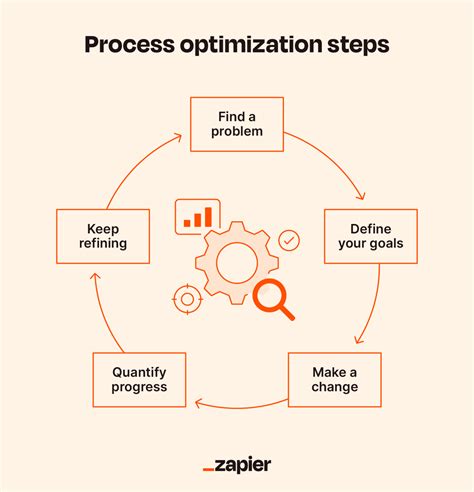
Don’t just set it and forget it. Periodically check your device’s battery and data usage statistics (found in your phone’s settings) to see which apps are consuming the most resources. This feedback loop allows you to fine-tune your settings for specific games or your overall usage patterns.
Some games might be more demanding than others, requiring a more aggressive optimization strategy. Experiment with different combinations of settings until you find the perfect balance between performance, visual quality, battery longevity, and data efficiency for your specific device and gaming preferences.

Conclusion
Optimizing your mobile game settings is a strategic approach to getting the most out of your device without constantly reaching for a charger or worrying about data overages. By intelligently adjusting in-game options, leveraging device-level features, and adopting good habits, you can significantly enhance your mobile gaming experience, making it more sustainable, enjoyable, and cost-effective. Dive into those settings menus and reclaim control over your mobile gaming destiny!