What’s the best way to manage Switch storage with an SD card for game downloads?

Why an SD Card is Essential for Nintendo Switch Owners
The Nintendo Switch, while a phenomenal console, comes with a rather modest 32GB of internal storage (64GB for the OLED model), a significant portion of which is occupied by the system software. For gamers who prefer digital downloads, this space fills up incredibly fast. An SD card isn’t just a convenience; it’s a necessity for expanding your game library without constantly deleting and redownloading titles. Investing in a good quality microSD card is the first step towards stress-free game management.

Choosing the Right MicroSD Card for Your Switch
Not all SD cards are created equal, and selecting the right one can significantly impact your experience. Here’s what to look for:
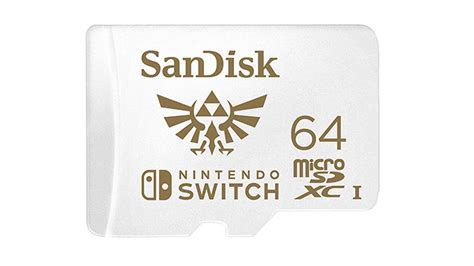
- Type: The Switch only supports microSDHC (up to 32GB) and microSDXC (64GB and above) cards. Given game sizes, an microSDXC card is highly recommended.
- Capacity: While 64GB might seem like a good starting point, most users quickly outgrow it. A 128GB or 256GB card offers a solid balance of price and capacity for most gamers. For avid collectors of digital titles, 512GB or even 1TB cards are available and provide ample space for years of downloads.
- Speed: Look for cards with a high read/write speed. The Switch supports UHS-I cards with a transfer speed up to 100MB/s. Specifically, look for cards rated ‘UHS-I’ and ‘Class 10’ or ‘U1’ for optimal performance, ensuring faster game loading times and smoother gameplay. Avoid slower cards, as they can lead to noticeable delays.
Installing and Setting Up Your SD Card
Installing an SD card into your Switch is straightforward:
- Turn off your Nintendo Switch completely (hold the power button, then select Power Options > Turn Off).
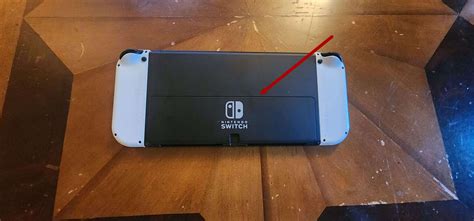
- Open the kickstand on the back of the console to reveal the microSD card slot.
- Insert the microSD card into the slot with the label facing the same direction as the Switch screen, pushing gently until it clicks into place.
- Close the kickstand and power on your Switch.
Your Switch will automatically detect and format the new card if it’s new or from another device. If you’ve been using the card elsewhere, ensure you back up any important data first, as formatting will erase its contents.
Managing Game Downloads and Storage Priorities
Once your SD card is in, the Switch generally prioritizes it for new game downloads. However, you still have control:
- New Downloads: The system will automatically download new software to the microSD card if available. If the card is full, it will then use internal storage.
- Moving Games: Unfortunately, the Switch doesn’t have a direct ‘move to SD card’ option for installed games. To move a game from internal storage to the SD card (or vice versa), you’ll need to archive it and then redownload it. Archiving only deletes the game data, keeping your save data intact.
- Archiving vs. Deleting: When space runs low, go to System Settings > Data Management > Manage Software. Here you can select games to ‘Archive Software’. This removes the main game data, freeing up space, but keeps your save data. The game icon remains on your home screen, allowing you to redownload it easily later. ‘Delete Software’ removes both game data and save data (unless cloud save is enabled).

Best Practices for Optimal Storage Management
To keep your Switch running smoothly and prevent storage headaches:
- Monitor Your Space: Regularly check your available space via System Settings > Data Management. This helps you anticipate when you’ll need to archive or get a larger card.
- Prioritize Digital Games on SD: Always aim to download large digital titles to your SD card. Keep smaller eShop titles or games you rarely play on internal storage if you must, but generally, the SD card is for bulk storage.
- Backup Save Data (Nintendo Switch Online): Save data is stored internally or via Nintendo Switch Online cloud saves. An SD card does NOT store save data. Ensure you have a Nintendo Switch Online subscription for cloud backups to protect your progress.
- Keep Your Card Safe: Once installed, try not to remove your SD card frequently, as this can potentially corrupt data. If you must, always power down the Switch completely first.

Conclusion
An adequately sized and speedy microSD card is the cornerstone of a healthy digital game library on your Nintendo Switch. By choosing the right card, understanding how the system manages data, and adopting smart archiving practices, you can expand your gaming horizons without constantly battling storage limits. This proactive approach ensures you spend less time managing files and more time enjoying the vast array of games available on the Switch.