





Optimize Switch storage: Best microSD cards & game archiving strategies?

Unlock Your Switch’s Full Potential: Mastering Storage Management
The Nintendo Switch, with its expansive library of digital titles, often leaves players facing the inevitable challenge of insufficient storage. Whether you’re a casual gamer or a dedicated collector, optimizing your Switch’s storage is crucial for a smooth and uninterrupted gaming experience. This guide will walk you through selecting the ideal microSD card and implementing effective game archiving strategies to keep your digital world in order.
Choosing the Right microSD Card for Your Switch
The internal 32GB (or 64GB for OLED models) storage of the Nintendo Switch fills up remarkably fast, especially with large-file games like The Legend of Zelda: Tears of the Kingdom or Pokémon Scarlet/Violet. A high-quality microSD card is not just an upgrade; it’s a necessity. But with so many options, how do you pick the best one?

Recommended microSD Card Capacities
- Casual Gamer (1-5 Digital Games): A 64GB or 128GB card will likely suffice. This offers a good balance between cost and storage for a handful of titles.
- Moderate Gamer (5-15 Digital Games): Aim for 256GB or 400GB. This provides ample space for a growing library without constant management.
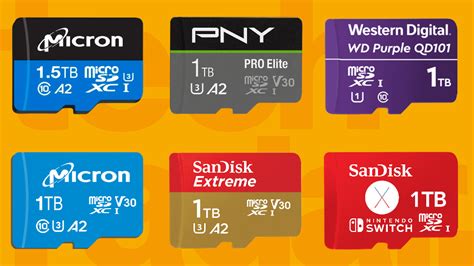
- Heavy Digital Collector (15+ Digital Games): Consider 512GB or even 1TB. If you prefer digital copies of almost every game, this capacity will give you peace of mind for years.
Remember, bigger is generally better when it comes to storage, especially since prices for microSD cards have become increasingly affordable.
Understanding Speed Ratings (UHS-I, A1/A2)
Capacity isn’t the only factor; speed matters too. The Nintendo Switch supports UHS-I (Ultra High Speed Phase I) cards, with a maximum transfer speed of up to 100MB/s. You’ll typically see these ratings on the card:
- UHS Speed Class: Look for a ‘1’ or ‘3’ inside a ‘U’ symbol. UHS-I Class 1 (U1) offers a minimum write speed of 10MB/s, while Class 3 (U3) offers 30MB/s. For Switch games, U1 is generally sufficient, but U3 offers a slight edge in loading times.
- Application Performance Class (A1 or A2): These ratings indicate how well the card handles random read/write operations, which is crucial for game loading. Both A1 and A2 cards are excellent, with A2 offering slightly better performance, though the difference might be negligible on the Switch itself due to its hardware limitations.
Recommendation: Always opt for a UHS-I card from a reputable brand (like SanDisk, Samsung, or Lexar) with at least a U1 speed class and ideally an A1 or A2 rating. Avoid generic or unbranded cards, as they often have inconsistent performance and reliability.
Smart Game Archiving Strategies
Even with a massive microSD card, eventually, you might need to manage your installed games. Here are effective strategies to keep your storage optimized:
1. Archive Software vs. Deleting Software
The Switch offers two primary ways to remove games:
- Archive Software: This is the recommended method. It deletes the game data from your console/microSD card but keeps its icon on your Home menu. It also retains your save data. When you want to play again, simply re-download the game, and your progress will be waiting.
- Delete Software: This removes both the game data and its icon from your Home menu. Crucially, it also deletes your save data if that data is stored locally and not backed up via Nintendo Switch Online. Only use this if you’re absolutely sure you no longer need the game or its save.
To archive a game, navigate to its icon on the Home menu, press ‘+’, select ‘Manage Software’, and then ‘Archive Software’.
2. Leveraging Cloud Saves with Nintendo Switch Online
A Nintendo Switch Online (NSO) subscription is highly recommended for digital game owners, primarily for its cloud save feature. Most (but not all) games support cloud saves, meaning your precious game progress is backed up online. This is invaluable when archiving games, upgrading your console, or in case of data corruption, ensuring your progress is safe.
- How it works: With NSO, your save data is automatically uploaded to the cloud (when connected to the internet) and downloaded when you start a game.
- Important Note: Some games, notably Splatoon 2/3, Pokémon Sword/Shield/Scarlet/Violet, and Animal Crossing: New Horizons (though ACNH has a specific backup feature), do not support cloud saves in the traditional sense due to anti-cheat or unique save mechanics. Always verify a game’s save data support.
3. Physical Cartridges vs. Digital Downloads
For ultimate storage efficiency, consider a hybrid approach:
- Physical Cartridges: Games played from physical cartridges take up minimal storage space on your console, typically only for save data and occasional patches/DLC. This is an excellent way to save precious digital space.
- Digital Downloads: Offer convenience, instant access, and the ability to switch games without carrying cartridges. They are also essential for Switch eShop exclusives. Prioritize digital purchases for games you play frequently or those that are digital-only.
4. Organizing Your Digital Library
The Switch allows you to create folders (Groups) on your Home menu to organize your games. This doesn’t free up storage, but it makes navigating your vast library much easier, helping you quickly find games you might want to unarchive.
- To create a Group: Scroll to the end of your game list, select ‘All Software’, then press the L button. You can then create and name groups for different genres, play statuses, or themes.

Conclusion
Effective storage management is key to fully enjoying your Nintendo Switch. By investing in a high-capacity, fast microSD card and intelligently utilizing the console’s archiving features alongside Nintendo Switch Online, you can ensure you always have space for new adventures and immediate access to your favorite titles. Proactive organization will save you time and frustration, letting you focus on what truly matters: gaming.


