





Switch storage full? How to clear space for games & save data with microSD tips.
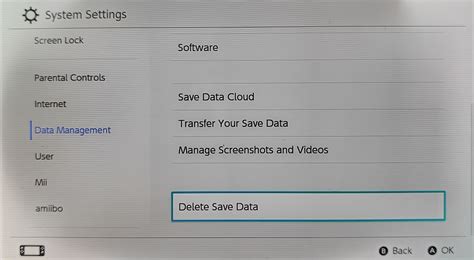
Running out of space on your Nintendo Switch is a common problem for many gamers. With a relatively small internal storage of 32GB (or 64GB for the OLED model), it doesn’t take long for digital game downloads, updates, and accumulated save data to fill up your console. But don’t worry, clearing space is straightforward, and expanding your storage with a microSD card is the ultimate solution. This guide will walk you through the steps to reclaim your storage and ensure you never miss out on a new game.
Understanding Your Switch’s Storage
Before you start deleting, it’s good to know what’s taking up the most space. Your Switch’s internal memory stores system data, game saves, screenshots, and sometimes digital games. Game data, especially for larger titles, can quickly consume gigabytes.
How to Check Your Current Storage
- From the HOME Menu, select System Settings.
- Scroll down the menu on the left and select Data Management.
- Here you’ll see a breakdown of your System Memory (internal) and microSD Card (if inserted), showing how much space is used by software, save data, and screenshots/videos.
Quick Fixes: Archiving vs. Deleting
When clearing space, you have two primary options for software: archiving or deleting. Understanding the difference is crucial.
Archiving Software
Archiving a game frees up space by removing the main game data from your system, but it keeps the game’s icon on your HOME Menu and, most importantly, preserves your save data. You can re-download the game at any time from the eShop or your user page, and pick up right where you left off. This is ideal for games you might want to play again later but don’t need installed right now.
To archive:
- From the HOME Menu, highlight the game you want to archive.
- Press the + or – button to open the Options menu.
- Select Data Management, then Archive Software.
- Confirm your choice.
Deleting Software
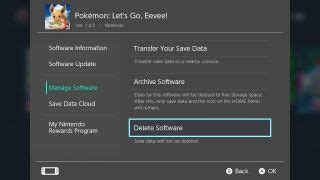
Deleting software removes the game data, its icon, and all associated save data. This option should only be used if you are absolutely certain you will never play the game again and don’t care about your progress. Be very careful with this option!
To delete:
- From the HOME Menu, highlight the game.
- Press the + or – button to open the Options menu.
- Select Data Management, then Delete Software.
- Confirm your choice.
Managing Saved Data and Screenshots
Game save data is typically small, but if you have hundreds of games, it can add up. Screenshots and video captures, especially videos, can also take up significant space.
Deleting Save Data
If you’ve truly finished with a game and don’t need its save file, you can delete it separately. Remember, this is irreversible.
- Go to System Settings > Data Management > Delete Save Data.
- Select the game for which you want to delete save data.
- Confirm the deletion.
Managing Screenshots and Videos
You can easily offload these to a computer or social media.
- Go to System Settings > Data Management > Manage Screenshots and Videos.
- From here, you can select individual items to delete or transfer all of them to a PC via a USB connection (if your Switch supports it) or by removing the microSD card.
The Essential Solution: A microSD Card
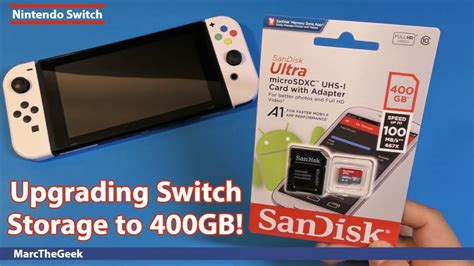
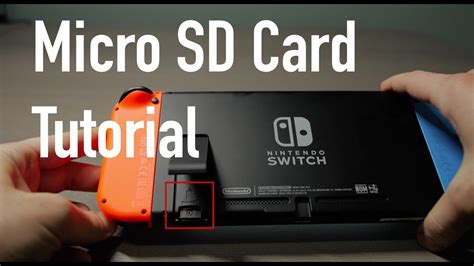
While archiving and deleting help, the most effective long-term solution for Switch storage woes is a microSD card. The Switch supports microSD, microSDHC, and microSDXC cards, allowing you to massively expand your storage capacity for digital games.
Why a microSD Card is Crucial
- Vast Storage Expansion: Go from 32GB/64GB to 128GB, 256GB, 512GB, or even 1TB+.
- Seamless Game Management: New digital downloads will automatically go to the microSD card if one is inserted.
- Retain Save Data: Your save data is always stored on the internal memory, ensuring it’s safe even if you swap or remove the microSD card.
Choosing the Right microSD Card
Not all microSD cards are created equal. For optimal performance, look for these specifications:
- Capacity: A 128GB or 256GB card is a great starting point for most users. If you download many games, consider 512GB or higher.
- Speed: Look for cards with a high read speed. Nintendo recommends a UHS-I (Ultra High Speed Phase I) compatible card with a transfer speed of 60 to 95 MB/s. Cards labeled ‘U3’ or ‘V30’ usually meet these requirements. Avoid slower cards, as they can lead to longer load times for games.
- Brand: Stick to reputable brands like SanDisk, Samsung, or Lexar to ensure reliability and performance.

Moving Games to Your microSD Card
Once you have a microSD card installed, you can move existing games from your system memory to the card.
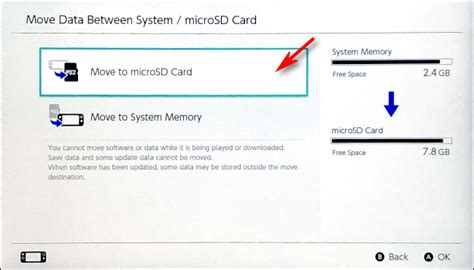
- Go to System Settings > Data Management > Move Data Between System / microSD Card.
- Select the software you wish to move. You can select multiple titles.
- Confirm the move.
This will transfer the game data, freeing up your internal memory while keeping the game accessible from the microSD card.
Pro Tips for Storage Management
- Regularly Review: Periodically check your storage in Data Management and archive games you haven’t played in a while.
- Offload Media: Regularly transfer screenshots and videos to a computer to keep that space clear.
- Consider Physical Games: If you buy physical game cartridges, the bulk of the game data is on the cartridge, reducing the need for internal storage, though updates and DLC will still use memory.
- Backup Saves (Nintendo Switch Online): If you have a Nintendo Switch Online subscription, enable cloud saves for your games. This acts as a backup and can provide peace of mind.
Conclusion
Running out of space on your Nintendo Switch is a temporary inconvenience, not a permanent roadblock. By understanding the difference between archiving and deleting, regularly managing your data, and most importantly, investing in a good quality microSD card, you can ensure your Switch always has room for new adventures. Get that card, clear some space, and keep gaming!


