





How to manage Nintendo Switch storage for digital games & large updates?
The Nintendo Switch, while a marvel of portable gaming, often presents a challenge when it comes to storage, particularly for players who prefer digital titles or frequently download large game updates. Out of the box, the standard Switch model offers 32GB of internal storage (OLED model has 64GB), much of which is used by the system software itself. This guide will walk you through the best practices for managing your Switch’s storage, ensuring you always have space for your next adventure.
Understanding Your Switch’s Storage Options
Before diving into management strategies, it’s important to know your storage landscape. The Nintendo Switch primarily uses two types of storage:
- Internal System Memory: This is the built-in storage where system software, save data, and some game data are stored. Its limited capacity quickly fills up with digital games.
- microSD Card: This is your primary expansion option. microSD cards are essential for serious digital gamers, allowing you to significantly increase your available space. Game data for downloaded titles can be installed directly to the microSD card.
Save data for all games is always stored on the internal system memory, and cannot be moved to a microSD card. This is important to remember as you manage your games.
Choosing and Installing the Right microSD Card
Expanding your storage with a microSD card is the most fundamental step in effective storage management. Nintendo Switch supports microSD (up to 2GB), microSDHC (4GB-32GB), and microSDXC (64GB and above) cards. For optimal performance, look for cards with:
- UHS-I compatibility: These are fast enough for the Switch.
- High read/write speeds: Look for cards with A1 or A2 ratings for better app performance, though standard UHS-I cards work fine.
- Sufficient Capacity: While a 64GB or 128GB card might suffice for a casual player, 256GB, 512GB, or even 1TB cards are recommended for extensive digital libraries.
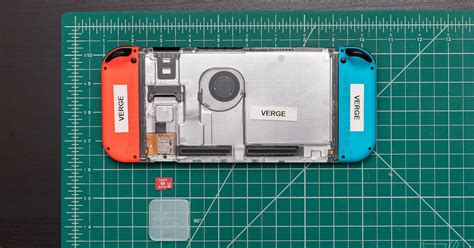
Installation is simple: Just open the kickstand on the back of your Switch and insert the microSD card into the slot. The system will automatically detect and format it for use.

Managing Your Digital Game Library
Once you have a microSD card, you’ll need to learn how to manage your games effectively:
Checking Storage Usage
Navigate to System Settings > Data Management to see a breakdown of your storage. Here you can view how much space is used by software, save data, and screenshots.
Archiving vs. Deleting Software
When you need space, the Switch offers two options for installed games:
- Archive Software: This is the recommended option. Archiving removes the game’s core data from your system or microSD card, freeing up space, but keeps its icon on your Home menu. Your save data is also preserved. You can re-download the game at any time from the eShop or your user page.
- Delete Software: This removes all game data, including its icon, from your system/microSD. While it also preserves your save data (which is stored internally), it’s a more permanent removal from your quick access.
To archive or delete, go to System Settings > Data Management > Manage Software, select the game, and choose your preferred option.

Handling Large Game Updates and DLC
Many Switch games receive significant updates, often adding new content or patches that can be several gigabytes in size. These updates require temporary space to download and install. If you’re low on storage, you might encounter messages preventing an update from completing.
- Free up Temporary Space: If an update fails, try archiving a large game you aren’t currently playing to create the necessary temporary space. Remember, your save data is safe!
- Prioritize microSD for Game Data: Ensure new downloads are directed to your microSD card. While the Switch usually does this automatically once a card is inserted, you can verify in Data Management.
- Managing DLC: Downloadable content (DLC) also takes up space. While most DLC is relatively small, comprehensive expansions can be significant. These are treated like part of the main game data and contribute to its overall size.

Tips for Optimal Storage Management
- Invest in a Large microSD Card Early: Don’t wait until you’re constantly running out of space. A 256GB or 512GB card is a great starting point for most digital gamers.
- Regularly Review Your Library: Periodically check your Data Management settings. Archive games you’ve completed or haven’t touched in months.
- Consider Physical Game Cards for Large Titles: If you frequently buy games that are known for their massive file sizes (e.g., RPGs, open-world adventures), opting for a physical game card can save precious digital storage space. While some physical games still require downloads for updates or parts of the game, the core game data doesn’t occupy your internal or microSD storage.
- Delete Screenshots and Videos: Over time, captured screenshots and video clips can accumulate. While individually small, a large collection can add up. Regularly review and delete unwanted media from your Album.

Conclusion
Managing your Nintendo Switch storage doesn’t have to be a headache. By understanding the different storage types, investing in a high-capacity microSD card, and regularly utilizing the archive function, you can ensure your console always has room for new games, essential updates, and your growing collection of digital adventures. A little proactive management goes a long way in keeping your Switch gaming experience smooth and enjoyable.


